
Tracking domains
To register subscribers’ clicks, all links in your emails are replaced with links to a dedicated link tracking domain. When a link is clicked, the click is registered, and then the reader is redirected to an original target page. UniOne allows you to use your own domains for link tracking, which increases the credibility of your messages as unfamiliar domain names do not show up in the email.
How to add your own tracking domain
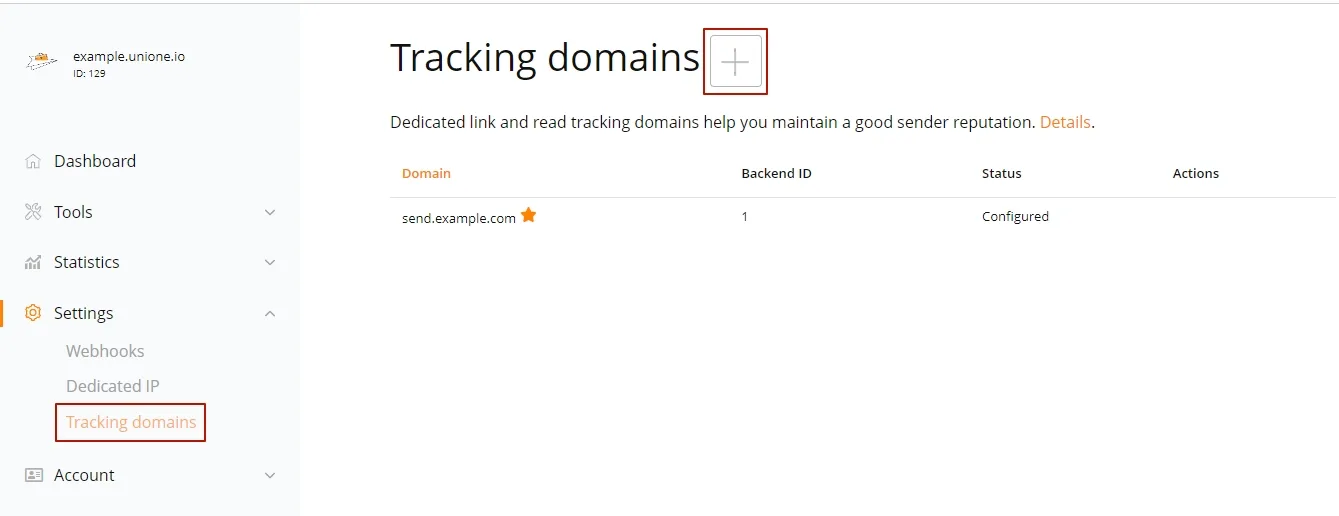
To add a new domain, go to the Settings – Tracking domains page and click the plus icon alongside the page title.
The domain name you enter will be used for link tracking. We recommend using a third level domain, preferably a subdomain of your brand’s primary domain. For instance, for example.com you may use names like send.example.com or link.example.com. If you use projects, you’ll also be able to specify projects for this domain. When ready, click “Save”.
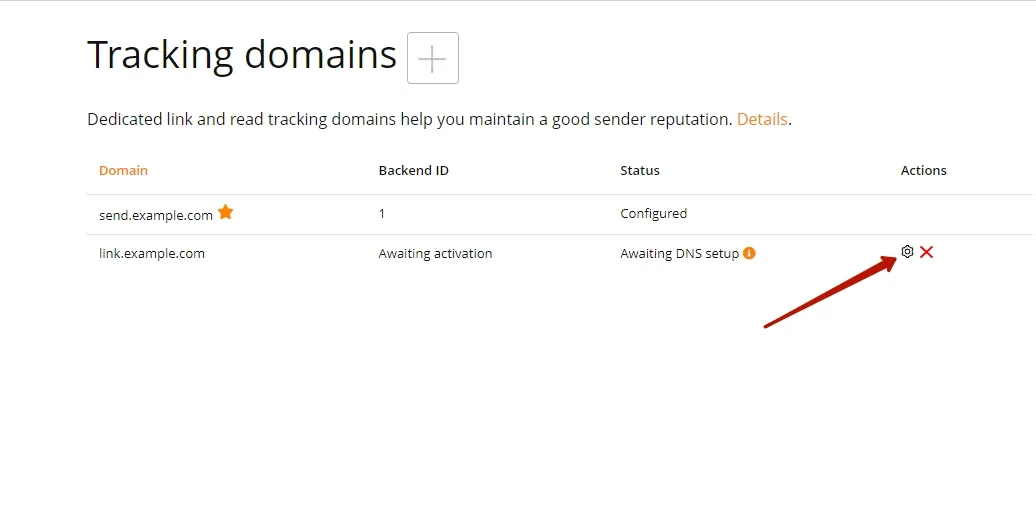
The domain’s status will be “Awaiting DNS setup”, and you’ll need to add a few DNS records for your domain (this is done in your domain’s registrar control panel). To view and copy the required records, click the gear icon.
After the records are added, you’ll need to wait until they propagate and are updated in our system. The time it takes varies from a few minutes to a couple of hours, depending on your provider’s settings. If everything’s ok, the domain status will change to “Setup in progress”.
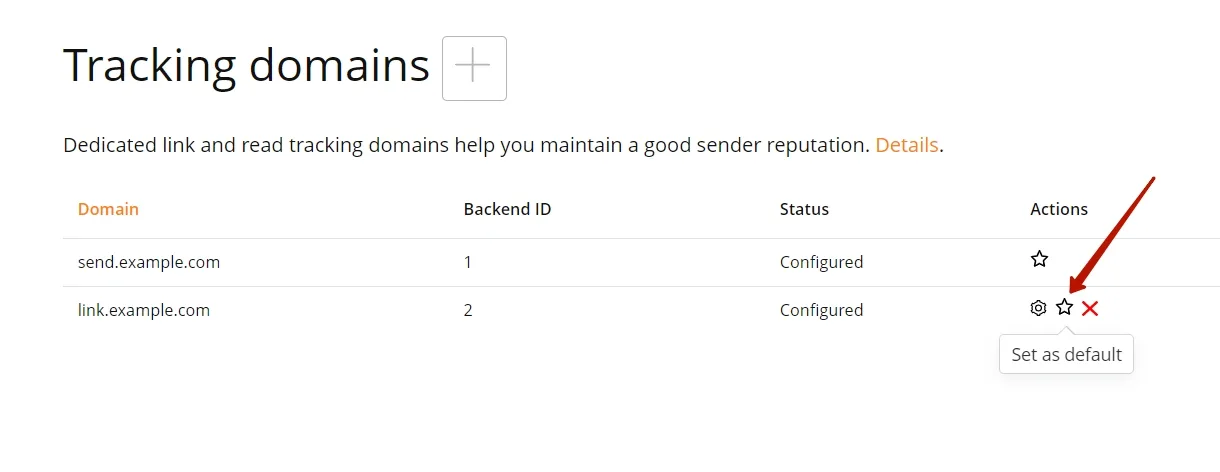
In the following 48 hours, our specialists will perform the required system setup, and the status will change to “Ready”. The domain may now be activated and, if necessary, set as default by clicking the star icon. If you’ve set up multiple tracking domains, specify the “custom_backend_id” value in email/send API call to use a particular one.
If the status changes to “Error”, contact our support team to find out what’s wrong and be advised on possible fixes.
To delete a domain you no longer need, click the cross-out icon on the right. If the domain was previously set as default, a system domain will be used instead.